Questions about setting up a vscode development environment

Hello.
I have a question about setting the VS code development environment.

"">www.youtube.com/watch
I installed the above YouTube link and installed toolchain v2.8.0 and sdk v2.8.0.
Afterwards, Create a new application selected a wifi sample and created a project in the C:/Wokespace/Nordic directory.
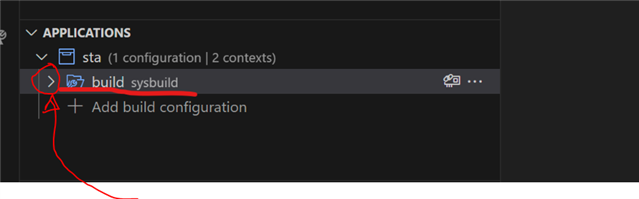
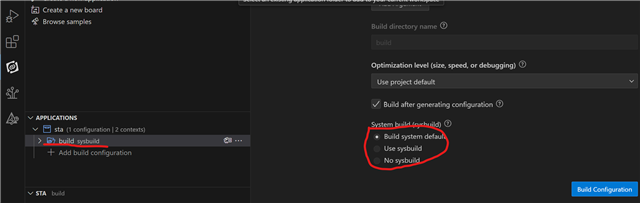
In the add build configuration, the load target was selected as nrf7002dk/nrf5340/cpuapp and built, but when you see it created, it is automatically selected as sysbuild.
What should I do to get the board of my choice??
Parents
  • Hello,

    I understand that this part can be a bit confusing. For a very quick solution for you, I could just say this: try NCS 2.6.1, or select no-sysbuild instead, or simply press the drop-down menu to find what board you are using.

    Though for a bit more info and an explanation please bare with me here:

    We have a lot of courses on how to get started with NCS, like for instance the Nordic DevAcademy, or the video you just referred to. But our nRF Connect SDK is developing rapidly, and these courses might refer to a few things that might not be completely valid on our newest versions of NCS. We used to have an old build system (now refered to as legacy build), that relates to how different images are built for the same board&SoC at the same time. Though due to the added complexity of our new SoCs, we created a new build system that improves this process. This new build system is called sysbuild. In NCS 2.8, sysbuild is the standard way to build things in NCS.

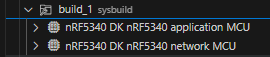
    That is why you see a certain difference between what is built in NCS 2.8 with sysbuild vs what you see in that video, especially for SoCs with multiple cores, like the nRF5340. If your goal is to make the GUI look like what you are used to from the video, you can then either try an older NCS version, or select "no sysbuild". If your goal is to just have control over what board you are writing to, then just press the drop-down menu next to where it says sysbuild - the board you are building for is right there.

    Regards,

    Elfving

Reply
  • Hello,

    I understand that this part can be a bit confusing. For a very quick solution for you, I could just say this: try NCS 2.6.1, or select no-sysbuild instead, or simply press the drop-down menu to find what board you are using.

    Though for a bit more info and an explanation please bare with me here:

    We have a lot of courses on how to get started with NCS, like for instance the Nordic DevAcademy, or the video you just referred to. But our nRF Connect SDK is developing rapidly, and these courses might refer to a few things that might not be completely valid on our newest versions of NCS. We used to have an old build system (now refered to as legacy build), that relates to how different images are built for the same board&SoC at the same time. Though due to the added complexity of our new SoCs, we created a new build system that improves this process. This new build system is called sysbuild. In NCS 2.8, sysbuild is the standard way to build things in NCS.

    That is why you see a certain difference between what is built in NCS 2.8 with sysbuild vs what you see in that video, especially for SoCs with multiple cores, like the nRF5340. If your goal is to make the GUI look like what you are used to from the video, you can then either try an older NCS version, or select "no sysbuild". If your goal is to just have control over what board you are writing to, then just press the drop-down menu next to where it says sysbuild - the board you are building for is right there.

    Regards,

    Elfving

Children
No Data
Related