Unable to load certificates through certificate manager on my custom 9151 board

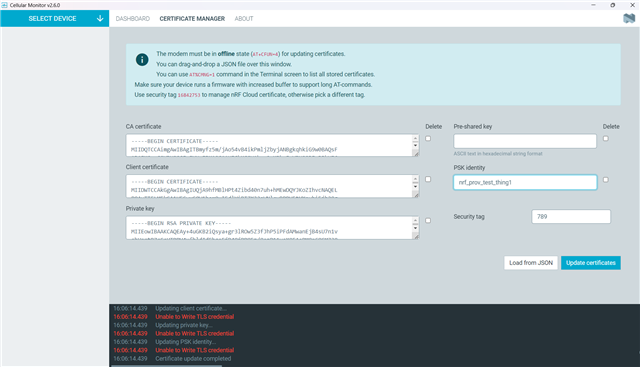
Hi I am able to load the nrf9151dk_at_client example hex on my custom dev board . I try accessing the AT commands and I can very easily get the responses. I want to install custom certificates & priv keys through Certificate Manager But as soon as I try to load it, I get Unable to Write TLS Credential. I did try updating the CERTS through AT%CMNG command and they too keep giving me some errors or are hanging. Not sure why it perfectly works on a dk but not on my custom board.
Parents
  • Hi parth,

    I have faced same problem on my custom 9151 board , if you goal is to load certificate CA, Client and Private key , i suggest you to claim your device through ( AT%ATTESTTOKEN )

                  Step 1: Get the Attestation Token from the Device
    1. Connect the board over USB and open the Serial Terminal app.
    2. Put the modem offline:
      AT+CFUN=4
    3. Generate the attestation token:
      AT%ATTESTTOKEN
      Step 2: Claim the Device on nRF Cloud
      1. Log in to nrfcloud.com.
      2. Go to Security Services → Claimed Devices.
      3. Click Claim Device.
      4. Paste the attestation token into the Claim token field.
      5. Set the rule to nRF Cloud Onboarding and click Claim Device.

      than in step 3 , flash 

      nRF Device Provisioning Sample  with adding ( CONFIG_NRF_CLOUD_CLIENT_ID_SRC_INTERNAL_UUID=y ) , and wait for sometime ,  the certificate will be load successfully , yu can check under  claimed device .

Reply
  • Hi parth,

    I have faced same problem on my custom 9151 board , if you goal is to load certificate CA, Client and Private key , i suggest you to claim your device through ( AT%ATTESTTOKEN )

                  Step 1: Get the Attestation Token from the Device
    1. Connect the board over USB and open the Serial Terminal app.
    2. Put the modem offline:
      AT+CFUN=4
    3. Generate the attestation token:
      AT%ATTESTTOKEN
      Step 2: Claim the Device on nRF Cloud
      1. Log in to nrfcloud.com.
      2. Go to Security Services → Claimed Devices.
      3. Click Claim Device.
      4. Paste the attestation token into the Claim token field.
      5. Set the rule to nRF Cloud Onboarding and click Claim Device.

      than in step 3 , flash 

      nRF Device Provisioning Sample  with adding ( CONFIG_NRF_CLOUD_CLIENT_ID_SRC_INTERNAL_UUID=y ) , and wait for sometime ,  the certificate will be load successfully , yu can check under  claimed device .

Children
No Data
Related