nRF Academy Intermediate Course - Lesson 1 Exercise 1: Issue with Debugging

Hello,

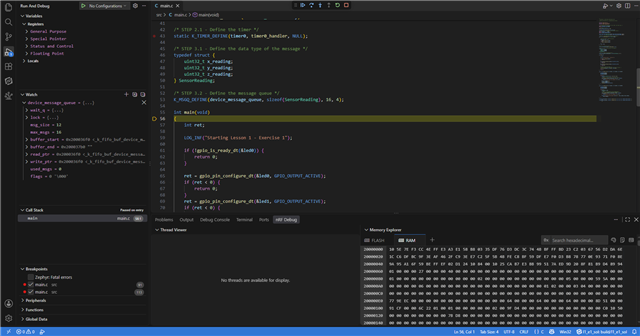
I tried following the exercise until the part where you start a debugging session. I looked at the thread viewer and the result was different than what was on the exercise. The picture below shows that the running thread is the idle thread instead of the main thread. Execution is supposed to break by default at main(). I tried manually putting a breakpoint in the main function but it didn't work either.
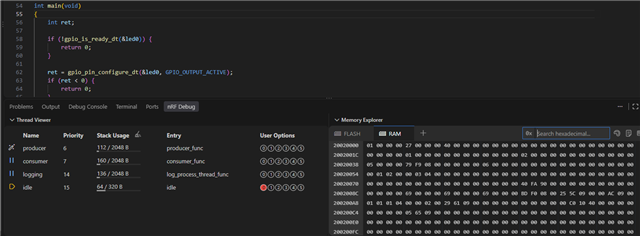
After that I tried changing the build configuration and unchecked "Include debug thread information". Somehow this fixed the problem. The result I'm getting in the thread viewer matches what's on the exercise. I can still see the thread names and stack usage even with the "Include debug thread information" unchecked.
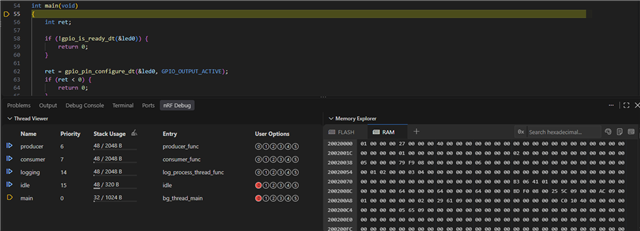
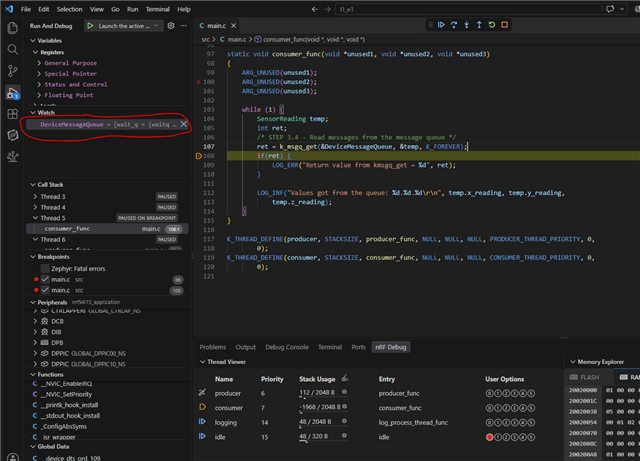
Edit: I continued the exercise and am unable to see the details of the message queue in the watch list like in the exercise. Could this be because I unchecked "Include debug thread information"?
Parents
  • Hi, we are preparing an October release of the vscode extension with fixes to the debugger. It should correctly stop in `main` now. It also fixes some minor issues with thread viewer and memory viewer.

    The setting "include debug thread information" is critical for the thread viewer to work. This setting enables the KConfig option CONFIG_DEBUG_THREAD_INFO so zephyr writes the thread info into the code. Without it, the thread viewer doesn't know where to get information about threads.

    When you are debugging, you should also set the "Optimization level" to "Optimize for debugging experience" or "no optimization", otherwise the code is shrunk to not match the source (stepping will be confusing) and important debug symbols will be missing from the .elf file.

    "Sometimes if I just edit the build configuration it will keep telling me to do a pristine build even after doing a pristine build already."

    This sounds like a bug, if you are able to tell me which setting you changed, we can look into fixing it. Usually it means the build output is not matching the sources, or some file changed in the build folder.

    "I usually just press debug without flashing after making changes"

    If you click Debug in the actions menu, it will also build and flash. If you change the code or settings, it is recommended to flash so your IDE is not using an elf that does not match the firmware running on the board.

    "I used the application name below the build folder (bottom red arrow) when I started the debugging session and I also do the same for flashing. Is there a difference between using one vs the other?"

    Not for debugging, either one is fine.

    Regards,
    Kristian from the nRF Connect for VSCode team

  • Hello Kristian,

    The new update worked, I can expand the variable in the watch list now. I'm also able to edit and then build the build configuration without it constantly telling me to do a pristine build. It also correctly stops at main whereas before it was sometimes inconsistent. 

    There's just one very minor problem. The thread viewer doesn't show any threads when you first run the debugger but it does show up once you start stepping.

    Thank you so much for this update!

Reply
  • Hello Kristian,

    The new update worked, I can expand the variable in the watch list now. I'm also able to edit and then build the build configuration without it constantly telling me to do a pristine build. It also correctly stops at main whereas before it was sometimes inconsistent. 

    There's just one very minor problem. The thread viewer doesn't show any threads when you first run the debugger but it does show up once you start stepping.

    Thank you so much for this update!

Children
No Data
Related