This post is older than 2 years and might not be relevant anymore
More Info: Consider searching for newer posts

Thingy91 unable to connect to nrfCloud

Hello ,

I have NRF thigy 91 and nrf9160 DK board and have flashed asset tracking hex file in both the devices . 

But the thingy91 is not able to connect to nrfCloud but DK baord connects with same modem firmware and application code .

I am curious to know what might be the issue .

Parents
  • Hi,

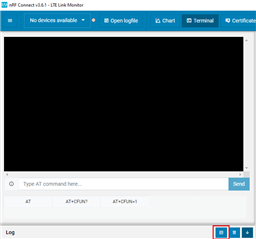
    Could you please attach some log from the Thingy:91? You can get this in LTE Link Monitor, which can be installed using nRF Connect for Desktop. Connect your Thingy to your computer with a USB cable and select it as a device in Select device. The log will appear in the terminal window, and you can get it by clicking Open log file as shown below. If you do not get any log and the device is selected, try to turn the device off and on again to get log from the beginning of the application.

    Which color is the LED on your Thingy? The LED indicates the application state, and will tell you where it is in the process.

    LED color

    State

    White

    Connecting to network

    Cyan

    Connecting to nRF Connect for Cloud

    Yellow

    Waiting for user association

    Blue

    Connected, sending environment data

    Purple

    Searching for GPS

    Green

    GPS has fix, sending GPS and environment data

    Red

    Error


    Be aware that you should update the modem firmware of the Thingy:91 using the firmware found here. This download contains both precompiled application and firmware image, so you can also update the Asset Tracker application with that download. The file CONTENTS.txt describes the content of the download and where to find different applications, so you should read that before programming any of the firmware images to your Thingy.

    Best regards,

    Marte

Reply
  • Hi,

    Could you please attach some log from the Thingy:91? You can get this in LTE Link Monitor, which can be installed using nRF Connect for Desktop. Connect your Thingy to your computer with a USB cable and select it as a device in Select device. The log will appear in the terminal window, and you can get it by clicking Open log file as shown below. If you do not get any log and the device is selected, try to turn the device off and on again to get log from the beginning of the application.

    Which color is the LED on your Thingy? The LED indicates the application state, and will tell you where it is in the process.

    LED color

    State

    White

    Connecting to network

    Cyan

    Connecting to nRF Connect for Cloud

    Yellow

    Waiting for user association

    Blue

    Connected, sending environment data

    Purple

    Searching for GPS

    Green

    GPS has fix, sending GPS and environment data

    Red

    Error


    Be aware that you should update the modem firmware of the Thingy:91 using the firmware found here. This download contains both precompiled application and firmware image, so you can also update the Asset Tracker application with that download. The file CONTENTS.txt describes the content of the download and where to find different applications, so you should read that before programming any of the firmware images to your Thingy.

    Best regards,

    Marte

Children
Related