This post is older than 2 years and might not be relevant anymore
More Info: Consider searching for newer posts

Bluetooth connection is not working all of a sudden.

Hello

I'm using the nrf52dk board.  It's been good so far, but suddenly there's a connection problem with Bluetooth.

I tested it with SDK's various ble examples.  Debugging, Bluetooth advertising, uart, gpio, etc. seem to work well. However, when the nrf connect app connects Bluetooth, the mcu recognizes that it is connected, but the app only says 'Connecting' as shown below.   And the service and characteristics of Bluetooth that connected as below are not printed out.
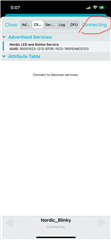
                            

//ble_app_blinky example (SDK17.0.2)
//In terminal
//after connected -> btn1 push

<info> app: Connected

<info> app: Send button state change.

It seems that the app is not connected, but mcu is output as connected and other actions are executed without any problems.

I don't know why this problem is happening all of a sudden. May I know about this problem?

Thank you.

Parents
  • Hi,

    What Mobile app are you using?

    Is the example completely unmodified?

    Do you experience the same with other connectable examples?

    regards

    Jared 

  • Hello
    I'm using the nrf connect app on my iPhone. It was tested with unmodified examples, and other Bluetooth examples have the same problem.


    Thank you.

  • You need to follow the testing instructions for the example. The example is not meant to be tested by the nRF Connect for Mobile application, but rather the nRF Connect for Desktop, the nRF Blinky Android app or secondary board running the ble_app_blinky_central exampe: 

    Testing

    You can test the example by using an Android device, a second development board, or nRF Connect.

    Test using an Android device

    To test the BLE Blinky Application, you must install the nRF Blinky Android app. It is available from Google Play and the nRF Blinky GitHub repository.

    Test using a Central Blinky Client

    You can test the Blinky example by using the BLE Blinky Client Application Example. The BLE Blinky Client Application Example is a central to this peripheral example. If you download these examples onto two different boards, you will notice that they connect to each other (LED 1 is off, LED 2 is ON). You can now press Button 1 on one of the boards and observe that LED 3 will light on the other board. For a more detailed description see the BLE Blinky Client Application Example documentation.

    Test using nRF Connect

    You can also test the application with nRF Connect for Desktop by performing the following steps:

    1. Compile and program the application. Observe that LED 1 is on. This indicates that the application is advertising.
    2. Connect to the device from nRF Connect (the device is advertising as 'Nordic_Blinky').
    3. Observe that LED 2 is on and LED 1 is off. This indicates that the connections is established.
    4. Observe that the services are shown in the connected device and that you can enable services for the Button Characteristic by clicking the 'Play' button.
    5. Notifications are received on the Button Characteristic (0x1524) when pressing or releasing Button 1.
    6. Write '01' to the LED Characteristic (0x1525) and observe that LED 3 is turned on.
    7. Write '00' to the LED Characteristic (0x1525) and observe that LED 3 is turned off.
Reply
  • You need to follow the testing instructions for the example. The example is not meant to be tested by the nRF Connect for Mobile application, but rather the nRF Connect for Desktop, the nRF Blinky Android app or secondary board running the ble_app_blinky_central exampe: 

    Testing

    You can test the example by using an Android device, a second development board, or nRF Connect.

    Test using an Android device

    To test the BLE Blinky Application, you must install the nRF Blinky Android app. It is available from Google Play and the nRF Blinky GitHub repository.

    Test using a Central Blinky Client

    You can test the Blinky example by using the BLE Blinky Client Application Example. The BLE Blinky Client Application Example is a central to this peripheral example. If you download these examples onto two different boards, you will notice that they connect to each other (LED 1 is off, LED 2 is ON). You can now press Button 1 on one of the boards and observe that LED 3 will light on the other board. For a more detailed description see the BLE Blinky Client Application Example documentation.

    Test using nRF Connect

    You can also test the application with nRF Connect for Desktop by performing the following steps:

    1. Compile and program the application. Observe that LED 1 is on. This indicates that the application is advertising.
    2. Connect to the device from nRF Connect (the device is advertising as 'Nordic_Blinky').
    3. Observe that LED 2 is on and LED 1 is off. This indicates that the connections is established.
    4. Observe that the services are shown in the connected device and that you can enable services for the Button Characteristic by clicking the 'Play' button.
    5. Notifications are received on the Button Characteristic (0x1524) when pressing or releasing Button 1.
    6. Write '01' to the LED Characteristic (0x1525) and observe that LED 3 is turned on.
    7. Write '00' to the LED Characteristic (0x1525) and observe that LED 3 is turned off.
Children
No Data
Related