Acceleration values on the LTE terminal for nRF9160

Hi,

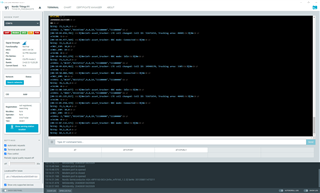
I'm using the default software to check the acceleration values when there is a movement in the Thingy:91 on the LTE Monitor terminal.

The document says that this type of output should be seen on the console: https://developer.nordicsemi.com/nRF_Connect_SDK/doc/1.9.1/zephyr/samples/sensor/adxl362/README.html#adxl362

But I'm unable to see anything on the console when I move the Thingy:91. Could you please tell me how to see the values acceleration values on the console?
Parents
  • Hello Harish,

    HarishNV said:
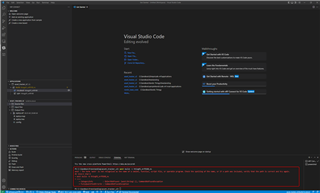
    I'm using nRF connect and have downloaded the asset_tracker_v2 directory. How do i use the adxl inside the build? Can you help me where I should write?

    First of all:

    The Asset Tracker v2 and
    ADXL362: Three Axis Accelerometer sample are two different applications, which must be build separated from each other. So, in your case taken from the picture where you have a free-standing Asset Tracker v2 application, you can run the build command for the Thingy:91 as following within the VS Code terminal:

    user@user-ubu:~/_work/VSCode/asset_tracker_v2_app$ west build -b thingy91_nrf9160_ns

    If you create a free-standing application for the ADXL362 sample, then your build command within the VS Code terminal would look like this:

    user@user-ubu:~/_work/VSCode/adxl362_app$ west build -b thingy91_nrf9160_ns

    Regards,
    Markus

Reply
  • Hello Harish,

    HarishNV said:
    I'm using nRF connect and have downloaded the asset_tracker_v2 directory. How do i use the adxl inside the build? Can you help me where I should write?

    First of all:

    The Asset Tracker v2 and
    ADXL362: Three Axis Accelerometer sample are two different applications, which must be build separated from each other. So, in your case taken from the picture where you have a free-standing Asset Tracker v2 application, you can run the build command for the Thingy:91 as following within the VS Code terminal:

    user@user-ubu:~/_work/VSCode/asset_tracker_v2_app$ west build -b thingy91_nrf9160_ns

    If you create a free-standing application for the ADXL362 sample, then your build command within the VS Code terminal would look like this:

    user@user-ubu:~/_work/VSCode/adxl362_app$ west build -b thingy91_nrf9160_ns

    Regards,
    Markus

Children
Related