RTT control block not found when using pylink

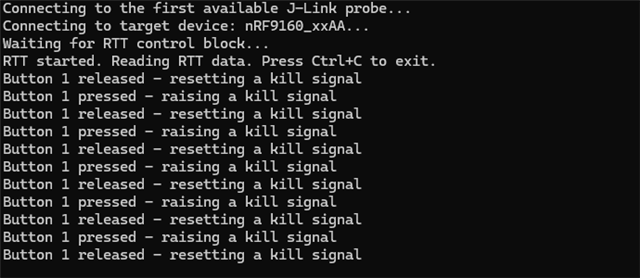
I am updating our automation software for programming Thingy 91 and trying to communicate to ModemShellRtt using python. In my test program attached, I would only like to see "Button 1 pressed - raising a kill signal" when I press the T91 button. I do see the message with JLink viewer and also when I connect to RTT within Visual Studio Code.

Within my attached code, I receive the following:

Connecting to the first available J-Link probe...
Connecting to target device: nRF9160_xxAA...
Waiting for RTT control block...
RTT control block not found.

I would appreciate any help on this matter.

Thanks

00> 
00> 
00> mosh:~$ *** Booting nRF Connect SDK v2.7.0-5cb85570ca43 ***
00> *** Using Zephyr OS v3.6.99-100befc70c74 ***
00> 
00> Reset reason: power-on reset
00> 
00> MOSH version:       v2.7.0
00> MOSH build id:      custom
00> MOSH build variant: dev
00> 
00> Network registration status: searching
00> Currently active system mode: LTE-M
00> LTE cell changed: ID: 77332752, Tracking area: 17169
00> RRC mode: Connected
00> PDN event: PDP context 0 activated
00> PDN event: PDP context 0, PDN type IPv4 only allowed
00> Modem domain event: Search done
00> Network registration status: Connected - roaming
00> PSM parameter update: TAU: 3240, Active time: -1 seconds
00> Modem config for system mode: LTE-M - NB-IoT
00> Modem config for LTE preference: No preference, automatically selected by the modem
00> Currently active system mode: LTE-M
00> Modem FW version:      mfw_nrf9160_1.3.6
00> Device ID:             nrf-351901930730670
00> Operator full name:   "AT&T"
00> Operator short name:  "AT&T"
00> Operator PLMN:        "310410"
00> Current cell id:       77332752 (0x049C0110)
00> Current phy cell id:   476
00> Current band:          12
00> Current TAC:           17169 (0x4311)
00> Current rsrp:          39: -101dBm
00> Current snr:           37: 13dB
00> Mobile network time and date: 25/09/12,14:36:48-20
00> PDP context info 1:
00>   CID:                0
00>   PDN ID:             0
00>   PDP context active: yes
00>   PDP type:           IP
00>   APN:                iot.1nce.net
00>   IPv4 address:       10.200.131.159
00>   IPv6 address:       ::
00>   IPv4 DNS address:   8.8.8.8, 8.8.4.4
00>   IPv6 DNS address:   ::, ::
00> RRC mode: Idle
00> Button 1 pressed - raising a kill signal
00> Button 1 released - resetting a kill signal

import pylink
import time
import sys

# The serial number of your J-Link probe. 
# This is useful if you have multiple J-Link devices connected.
# You can find the serial number using the 'pylink.jlink_list()' function or the J-Link Commander.
JLINK_SERIAL_NO = None # Or provide your serial number here


# Define the device name. For the Thingy:91's nRF9160 SiP, this is 'nRF9160_xxAA'.
TARGET_DEVICE = 'nRF9160_xxAA'

# Initialize and open a connection to the J-Link
try:
    jlink = pylink.JLink()
    # Open a connection to the J-Link. 
    # The serial number is optional but recommended for clarity.
    if JLINK_SERIAL_NO:
        print(f"Connecting to J-Link probe with serial number {JLINK_SERIAL_NO}...")
        jlink.open(serial_no=JLINK_SERIAL_NO)
    else:
        print("Connecting to the first available J-Link probe...")
        jlink.open()
    
    # Connect to the target device (Thingy:91's nRF9160)
    print(f"Connecting to target device: {TARGET_DEVICE}...")
    jlink.connect(TARGET_DEVICE, verbose=True)


    # Wait for RTT to be initialized by the target firmware
    print("Waiting for RTT control block...")
    time.sleep(2)  # Wait for a moment to let RTT initialize on the target

    # Search for and start the RTT control block
    if jlink.rtt_start():
        print("RTT started. Reading RTT data. Press Ctrl+C to exit.")

        while True:
            # Read from RTT buffer 0. Timeout is in milliseconds.
            data = jlink.rtt_read(0, 1024)
            if data:
                # Decode and print the received data
                print(data.decode('utf-8'), end='')
            time.sleep(0.1)  # Poll every 100ms
    else:
        print("RTT control block not found.")

except KeyboardInterrupt:
    print("User interrupted. Exiting.")
finally:
    jlink.close()

Parents
  • Hello,

    can you try the advice here?

    "The SEGGER Control Block cannot be found by automatic search by the RTT Viewer/Logger. As a workaround, set the RTT Control Block address to 0 and it will try to search from address 0 and upwards. If this does not work, look in the builddir/zephyr/zephyr.map file to find the address of the _SEGGER_RTT symbol in the map file and use that as input to the viewer/logger."

  • I've tried both 0 and 0x0000000020010100 (found in the map file) with the same results.

    I am not certain what you mean by "Set the RTT control Block address to 0". Do you mean to do this in the python script?

    I am also not clear by exactly what you mean by the "viewer/logger"

    R

    modem_shell.zip

    import pylink
    import time
    import sys
    
    # The serial number of your J-Link probe. 
    # This is useful if you have multiple J-Link devices connected.
    # You can find the serial number using the 'pylink.jlink_list()' function or the J-Link Commander.
    JLINK_SERIAL_NO = None # Or provide your serial number here
    
    
    # Define the device name. For the Thingy:91's nRF9160 SiP, this is 'nRF9160_xxAA'.
    TARGET_DEVICE = 'nRF9160_xxAA'
    
    # Initialize and open a connection to the J-Link
    try:
        jlink = pylink.JLink()
        # Open a connection to the J-Link. 
        # The serial number is optional but recommended for clarity.
        if JLINK_SERIAL_NO:
            print(f"Connecting to J-Link probe with serial number {JLINK_SERIAL_NO}...")
            jlink.open(serial_no=JLINK_SERIAL_NO)
        else:
            print("Connecting to the first available J-Link probe...")
            jlink.open()
        
        # Connect to the target device (Thingy:91's nRF9160)
        print(f"Connecting to target device: {TARGET_DEVICE}...")
        jlink.connect(TARGET_DEVICE, verbose=True)


        # Wait for RTT to be initialized by the target firmware
        print("Waiting for RTT control block...")
        time.sleep(2)  # Wait for a moment to let RTT initialize on the target
    
        # Search for and start the RTT control block
        if jlink.rtt_start(0x0000000020010100):
            print("RTT started. Reading RTT data. Press Ctrl+C to exit.")
    
    
            while True:
                # Read from RTT buffer 0. Timeout is in milliseconds.
                data = jlink.rtt_read(0, 1024)
                if data:
                    # Decode and print the received data
                    print(data.decode('utf-8'), end='')
                time.sleep(0.1)  # Poll every 100ms
        else:
            print("RTT control block not found.")
    
    except KeyboardInterrupt:
        print("User interrupted. Exiting.")
    finally:
        jlink.close()
    

Reply
  • I've tried both 0 and 0x0000000020010100 (found in the map file) with the same results.

    I am not certain what you mean by "Set the RTT control Block address to 0". Do you mean to do this in the python script?

    I am also not clear by exactly what you mean by the "viewer/logger"

    R

    modem_shell.zip

    import pylink
    import time
    import sys
    
    # The serial number of your J-Link probe. 
    # This is useful if you have multiple J-Link devices connected.
    # You can find the serial number using the 'pylink.jlink_list()' function or the J-Link Commander.
    JLINK_SERIAL_NO = None # Or provide your serial number here
    
    
    # Define the device name. For the Thingy:91's nRF9160 SiP, this is 'nRF9160_xxAA'.
    TARGET_DEVICE = 'nRF9160_xxAA'
    
    # Initialize and open a connection to the J-Link
    try:
        jlink = pylink.JLink()
        # Open a connection to the J-Link. 
        # The serial number is optional but recommended for clarity.
        if JLINK_SERIAL_NO:
            print(f"Connecting to J-Link probe with serial number {JLINK_SERIAL_NO}...")
            jlink.open(serial_no=JLINK_SERIAL_NO)
        else:
            print("Connecting to the first available J-Link probe...")
            jlink.open()
        
        # Connect to the target device (Thingy:91's nRF9160)
        print(f"Connecting to target device: {TARGET_DEVICE}...")
        jlink.connect(TARGET_DEVICE, verbose=True)


        # Wait for RTT to be initialized by the target firmware
        print("Waiting for RTT control block...")
        time.sleep(2)  # Wait for a moment to let RTT initialize on the target
    
        # Search for and start the RTT control block
        if jlink.rtt_start(0x0000000020010100):
            print("RTT started. Reading RTT data. Press Ctrl+C to exit.")
    
    
            while True:
                # Read from RTT buffer 0. Timeout is in milliseconds.
                data = jlink.rtt_read(0, 1024)
                if data:
                    # Decode and print the received data
                    print(data.decode('utf-8'), end='')
                time.sleep(0.1)  # Poll every 100ms
        else:
            print("RTT control block not found.")
    
    except KeyboardInterrupt:
        print("User interrupted. Exiting.")
    finally:
        jlink.close()
    

Children
  • Seems like the issue was with the python script itself. I did some changes and now it works fine;

    import pylink
    import time
    import sys
    
    # The serial number of your J-Link probe. 
    # This is useful if you have multiple J-Link devices connected.
    # You can find the serial number using the 'pylink.jlink_list()' function or the J-Link Commander.
    JLINK_SERIAL_NO = None # Or provide your serial number here
    
    
    # Define the device name. For the Thingy:91's nRF9160 SiP, this is 'nRF9160_xxAA'.
    TARGET_DEVICE = 'nRF9160_xxAA'
    
    # Initialize and open a connection to the J-Link
    try:
        jlink = pylink.JLink()
        # Open a connection to the J-Link. 
        # The serial number is optional but recommended for clarity.
        if JLINK_SERIAL_NO:
            print(f"Connecting to J-Link probe with serial number {JLINK_SERIAL_NO}...")
            jlink.open(serial_no=JLINK_SERIAL_NO)
        else:
            print("Connecting to the first available J-Link probe...")
            jlink.open()
        
        # Connect to the target device (Thingy:91's nRF9160)
        print(f"Connecting to target device: {TARGET_DEVICE}...")
        jlink.connect(TARGET_DEVICE, verbose=True)


        # Wait for RTT to be initialized by the target firmware
        print("Waiting for RTT control block...")
        time.sleep(2)  # Wait for a moment to let RTT initialize on the target
    
        # Search for and start the RTT control block
        jlink.rtt_start()
        print("RTT started. Reading RTT data. Press Ctrl+C to exit.")
    
    
        while True:
            # Read from RTT buffer 0. Timeout is in milliseconds.
            data = jlink.rtt_read(0, 1024)
            if data:
                # Decode and print the received data
                print(bytes(data).decode('utf-8'), end='')
            time.sleep(0.1)  # Poll every 100ms
    
    except KeyboardInterrupt:
        print("User interrupted. Exiting.")
    finally:
        jlink.close()
    

Related