Devicetree Visual Editor - not linked to project?

As a detour to getting DFU working for my existing project, based on nRF54L15, it was suggested in a previous ticket that the issue might be with my custom board folder, and how I created it, and that I should review the section in the Nordic Academy (nRF Connect SDK Intermediate - Adding custom board support).

So, I am doing this rather reluctantly, as the product we have is all but finished, with the last task being getting DFU working.

I am using SDK 2.9.2.

In Exercise 1, I have created the board file, and built the HelloWorld project

The interface described is out of date, so instead of clicking Devicetree under the Actions panel, I click on the Devicetree Visual Editor icon on the very left panel of VSCode / nRFConnect.

By the way, I have all Nordic extensions installed and up to date.

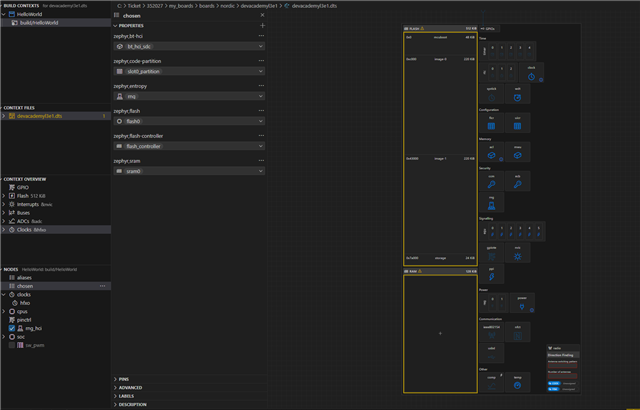
In the exercise, the visual editor “provides an overview of the devicetree context and a visual representation of the devicetree structure of your project”. However, when I click on the Devicetree Visual Editor, I get nothing. I get the four panels on the left: Build Contexts, Context Files, Context Overview, Nodes – all empty (except for their descriptions). So, I can assume that it is not linked to the project that I have open and built. I don’t see any + button or equivalent for adding or linking any file.

 So, I am stuck again, delayed again. Forever frustrated using nRFConnect and Zephyr. The academy lessons are ok, but always based on a narrow example, and the assumption that everything works first time. I tried searching this DevZone for anything on this, with no success. And all of this is just step 1 of trying to get through the lessons, so that maybe I can get back to re-creating my own board, so that I can maybe add DFU to my project successfully, so that maybe one day I can deliver something to a frustrated customer Frowning2

Parents
  • Hi,
    I want to sincerely apologize for the frustration and delays you’ve been experiencing while working through this.

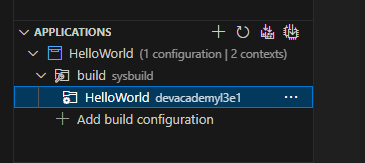
    For the device tree visual editor to "link", you need to actually click on the specific build that you need to set it as you active build context. This is to ensure that for projects with multiple builds, the correct device tree and configs will be pulled up.

    So, click on the build that you created under your build folder and then try Device Tree Visual Editor again or press on Devicetree like in the exercise.

    You should see everything that you need.

    And since you are working with the nRF54L15, I suggest you move on to exercise 2 to speed up the process

    You’re right that the documentation and tooling sometimes lag behind, and that can make what should be a straightforward exercise feel like a roadblock. I’ll make sure your feedback is shared with the DevAcademy team so they can improve this section.

    Thank you for your understanding and patience.

    Best Regards,
    Daniel Nguyen


Reply
  • Hi,
    I want to sincerely apologize for the frustration and delays you’ve been experiencing while working through this.

    For the device tree visual editor to "link", you need to actually click on the specific build that you need to set it as you active build context. This is to ensure that for projects with multiple builds, the correct device tree and configs will be pulled up.

    So, click on the build that you created under your build folder and then try Device Tree Visual Editor again or press on Devicetree like in the exercise.

    You should see everything that you need.

    And since you are working with the nRF54L15, I suggest you move on to exercise 2 to speed up the process

    You’re right that the documentation and tooling sometimes lag behind, and that can make what should be a straightforward exercise feel like a roadblock. I’ll make sure your feedback is shared with the DevAcademy team so they can improve this section.

    Thank you for your understanding and patience.

    Best Regards,
    Daniel Nguyen


Children
No Data
Related