Hint: "self: import: submanifests": file not found

Whenever I open my workspace or build in VS Code, the Output tab of the bottom pane opens to nRF Connect output where it repeats this many times:

[west]: FATAL ERROR: can't load west manifest: Malformed manifest data
[west]: Schema file: /home/rmulder/ncs/toolchains/b2ecd2435d/usr/local/lib/python3.12/site-packages/west/manifest-schema.yml
[west]: Hint: "self: import: submanifests": file not found

[west]: exited with code 1.

How can I debug this? Which manifest file is it referring to?

Parents Reply Children
  • Sorry for the delayed response.

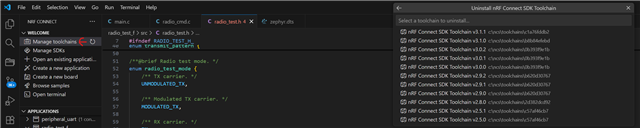
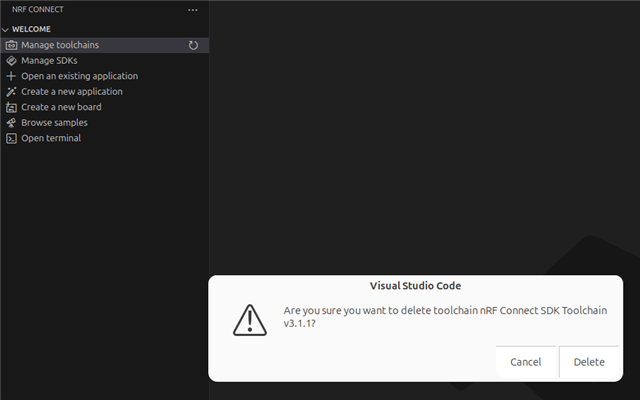
    When I select Manage toolchains -> Uninstall toolchain, it prompts me to remove it with a dialog. Perhaps because I only have one toolchain installed?

  • Try installing a second one, e.g. v3.0.0, just to see the list. 

    BR,
    Edvin

  • Thank you!

    Are you intentionally trying to use the v3.1 branch? Is there any reason why you don't want to check out a tag, e.g. v3.1.1? It is often better to work on stable releases. If so, you can install the SDK by using the "Manage SDKs" button (right below "Manage toolchains").

    If you for some reason want to use the live v3.1-branch, then can you please upload your entire manifest file? Our VS Code team believes there is something else in that file, causing it to be corrupt. At least they tested with this, and that worked without any issues:

    $ cat west.yml 
    manifest:
      projects:
        - name: nrf
          url: https://github.com/nrfconnect/sdk-nrf.git
          revision: v3.1-branch
          import: true
          clone-depth: 1
    ...

    If you can't post it here, feel free to send it to me in a DM here on DevZone.

    Best regards,

    Edvin

  • Yes, I was intentionally using the branch, but I accept your recommendation to use the stable version.

    Still, I prefer to use west to manage the SDK (rather than installing it) to simplify setup for developers and continuous integration.

    The sdk version didn't make a difference, but I do think I stumbled on the problem while experimenting with the different versions.

    My VS Code workspace includes the folder of a library we wrote with a west.yml (or something that nRF Connect is finding). When I remove the folder, the issue clears up.

    Here's my files:

    folder structure:

    MyProject
      my-project.code-workspace
      .west
        config
      my-project
        west.yml
      my-library
        west.yml

    MyProject/my-project.code-workspace:

    {
      "folders": [
        {
          "path": "."
        },
        {
          "path": "my-library"
        }
      ],
      "settings": {
        "nrf-connect.applications": [
          "${workspaceFolder}/my-project"
        ],
        "nrf-connect.boardRoots": [
          "${workspaceFolder}/my-library"
        ]
      }
    }

    MyProject/.west/config

    [manifest]
    path = my-project
    file = west.yml
    
    [zephyr]
    base = zephyr

    MyProject/my-project/west.yml

    manifest:
      projects:
        - name: my-library
          url: [email protected]:my-library.git
          revision: main
          import: west.yml
          clone-depth: 1
      self:
        path: my-project
    

    MyProject/my-library/west.yml

    manifest:
      projects:
        - name: nrf
          url: https://github.com/nrfconnect/sdk-nrf.git
          revision: v3.1.1
          import: true
          clone-depth: 1
    
      self:
        path: my-library
    

    So when I remove this from the folders array in MyProject/my-project.code-workspace, the issue clears up:

        {
          "path": "my-library"
        }

    But, then VS Code won't interact with the code in my-library, which I'm often developing at the same time as my-project.

Related