Using the 54l15 chip, with the NCSv3.2.1 version, the example is compiled using peripheral_uart.
I have been using this environment for over a year now.
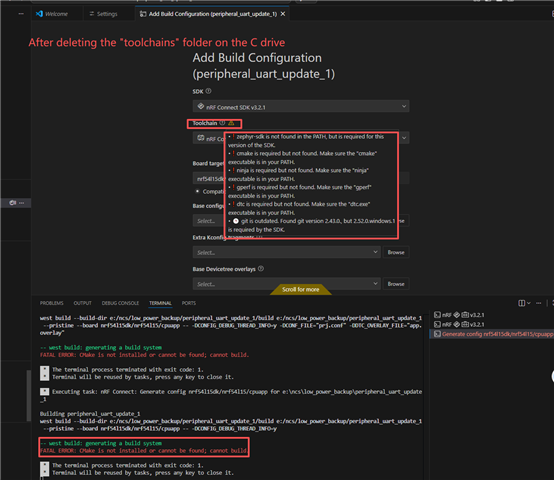
1. When I was compiling today, I encountered the following problem
2. I attempted to delete C:\UserTools\Cmake, but encountered the following error message.
west build --build-dir e:/ncs/low_power_backup/peripheral_uart_update_1/build e:/ncs/low_power_backup/peripheral_uart_update_1 --pristine --board nrf54l15dk/nrf54l15/cpuapp -- -DCONFIG_DEBUG_THREAD_INFO=y

-- west build: generating a build system
FATAL ERROR: CMake is not installed or cannot be found; cannot build.
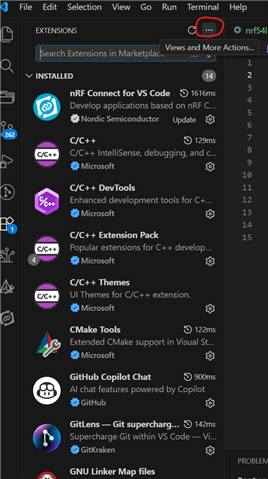
3. I attempted to reinstall the "NRF Connect for VS Code" within VS Code from scratch.
FATAL ERROR: CMake is not installed or cannot be found; cannot build.
4. I uninstalled all the extensions of VSCode and finally uninstalled VSCode itself. Then I reinstalled them, but still got an error message.
FATAL ERROR: CMake is not installed or cannot be found; cannot build.
5. Compile using the nrf connet port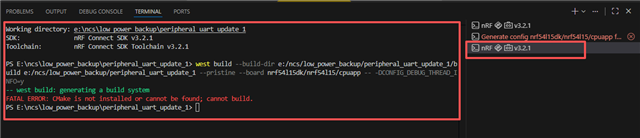
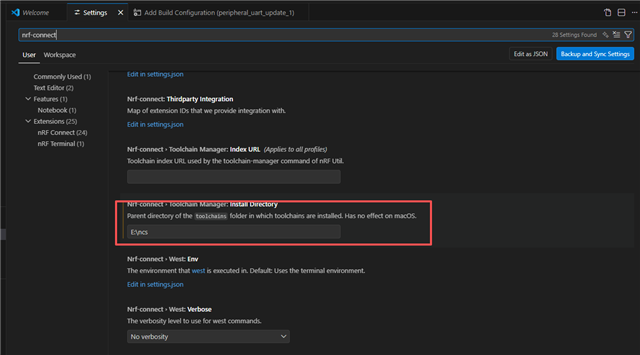
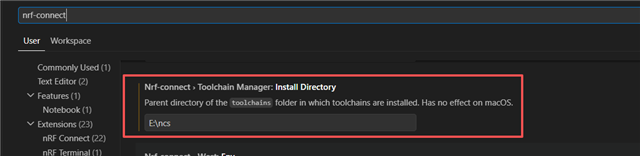
The SDK for my NCS is not on the C drive, but on another drive. I'm not sure if this will cause any problems.The SDK is not on the C drive. I have always used it this way.
Could you please take a look at it and help solve it as soon as possible? It's extremely urgent!
Looking forward to your reply very much.