This post is older than 2 years and might not be relevant anymore
More Info: Consider searching for newer posts

nRF sniffer for nRF52840: Can not set filter

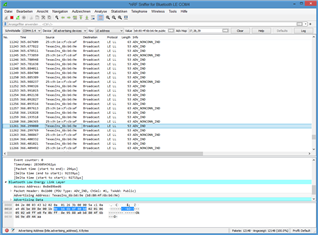
2. In the nRF sniffer software, the device I'm interested in does not show up in the "Source" column with its addess, b8:80:4f:6b:b6:9e, but as "TexasIns_6b:b6:9e". It seems this prevents me from filtering. If a filter is added for the device's address (eth.src == b8:80:4f:6b:b6:9e), all events disappear and no new events appear. I'm not allowed to enter "eth.src == TexasIns_6b:b6:90" as filter: "not a valid ethernet address". Is there a work-around?!

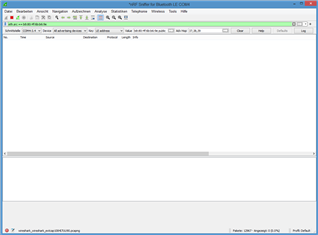
2. Another problem is that the drop-down devices list (inital content: "All advertising devices") is not populated. "All advertising devices" remains the only entry. It was populated when I used the program for the first time but not now (and it was only partially populated; my device was not in it). Windows 8.1

/resized-image/__size/320x236/__key/communityserver-discussions-components-files/4/Screenshot-1.PNG

/resized-image/__size/320x236/__key/communityserver-discussions-components-files/4/Screenshot-2.PNG

Parents
  • Hi, 

    1. Use btle.advertising_address == b8:80:4f:6b:b6:9e. Take a look at tips-for-filtering-ble-packets-using-wireshark-and-nordic-ble-sniffer 

    2. Not pretty understand the question. Isn't your device TexasIns_6b:b6:9e in scheenshot-2.png? 

    Regards,
    Amanda

  • Thanks for the reply. That doesn't work for me though. If I use btle.advertising_address == b8:80:4f:6b:b6:9e as filter, instead of using the devices drop-down list, the advertisements are filtered correctly but capture stops at the connect. After the connect, no more packets appear. Btw, is there no way for Nordic's installation to make the right-click-use-this-as-filter operation over a packet use the correct syntax for Bluetooth out of the box?

    The funny thing is sometimes the "All Advertising Devices" drop-down list gets populated. Most of the time not - even though the sniffer works fine (lots of advertisements scrolling through). I have found no rhyme or reason to it. I've tried: Waiting a long time. Restarting Wireshark. Turning capturing on/off. Resizing the window (in case it's a GUI bug). Nothing of this reliably gets that list filled. However, *IF* that drop-down-list gets populated, I can select the peripheral device I'm interested in and everything works, incuding sniffing packets after a connect (most of the time; some connects are missed and must be repeated).

  • Yes, I can see the advertising packets of various devices nearby (example video: https://vimeo.com/611782193 ). It's just that the drop-down devices list is not filled out accordingly. It remains empty most times I run Wireshark. On rare occasions, I get lucky and the list is filled but even then it is not always fully populated. Only some devices may show up there (example: https://vimeo.com/611782337). 

  • Hi, 

    Can you try Window10? 

    See nRF Sniffer for Bluetooth LE:

    Supported operating systems

    • Windows 10
    • 64-bit OS X/macOS 10.6 or later
    • Linux (check the Wireshark prerequisites for version compatibility)

    -Amanda

  • Hi,

    > Can you try Window10?

    Alas, no.

    Is it a verified fact that Windows 10 is required? Wireshark and Python are not limited to Windows 10 and the sniffer is a Python program. It seems the only part that could be OS-dependend would be the driver. I had a problem with that driver: After flashing the sniffer hex, my stick was not recognized (before that, it was a COM device). This was probably caused by it having a different PID (product id) than expected. It was enumerated as USB device with

    USB\VID_1915&PID_522A&REV_0204&MI_00
    USB\VID_1915&PID_522A&MI_00

    I found some other user with that problem in this forum and followed the suggestions: Download the nRF SDK, locate an USB driver under examples, use that. So I installed that driver. It didn't work directly, it didn't match the PID of my stick (it was for VID_1915&PID_520F&MI_00 and VID_1915&PID_521F&MI_00). However, by choosing "manual installation/select from installed drivers", I could assign that driver to the dongle. There was a warning though. I assumed that is just a serial-over-usb driver and that the warning could be ignored (since the serial link obviously works).

  • Hi, 

    dtmr said:
    After flashing the sniffer hex, my stick was not recognized (before that, it was a COM device).

    I think this is one of the reasons requires to use Windows 10.

    Unfortunately, I don't have access to a Windows 8.1 computer. Can you please try the suggestions that Stian provides in this thread:

    https://devzone.nordicsemi.com/f/nordic-q-a/41853/usb-driver-install-fail-on-window-7-8-nrf52840-nordic_cdc_acm-inf

    If this still cannot help, I would strongly suggest you use Windows 10 as the doc requires.

    -Amanda 

  • 1. It does not look like a driver problem (after manually installing one). BLE packets are sniffed and show up in Wireshark, including advertisements. The packets required to build a device list apparently arrive, they just don't get translated into a device list. This seems to be an issue on a higher level (python code of capture filter?). I've tried different versions of Wireshark (back to 2019) and Python (python-3.7.9-amd64, python-3.9.7-amd64) to exclude incompatibility with the latest versions.

    2. The Python code of the Nordic sniffer capture filter contains logging statements, such as this one in nrf_sniffer_ble.py:

    log = "Scanning all advertising devices"
    logging.info(log)

    Do you know how/where these log messages can be viewed? I don't think it's the log displayed by the "Log" button in the user interface of Wireshark because above message is not in there:

    INFO: Log started at Fri Sep 24 14:28:02 2021
    INFO: Extcap version 3.4
    INFO: Opening serial port COM4
    INFO: closing UART
    INFO: Opening serial port COM4
    INFO: args: ()
    INFO: kwargs: {'callbacks': [('*', <bound method Notifier.passOnNotification of <Sniffer(Thread-3, initial)>>)]}
    INFO: board ID: 4
    INFO: Sniffer created
    INFO: Software version: 4.0.0
    INFO: sniffer started
    INFO: Firmware version 4.0.0
    INFO: starting scan
    INFO: Firmware timestamp 742688758 reference: Sep 24 2021 14:28:02.835117 Mitteleuropäische Sommerzeit

Reply
  • 1. It does not look like a driver problem (after manually installing one). BLE packets are sniffed and show up in Wireshark, including advertisements. The packets required to build a device list apparently arrive, they just don't get translated into a device list. This seems to be an issue on a higher level (python code of capture filter?). I've tried different versions of Wireshark (back to 2019) and Python (python-3.7.9-amd64, python-3.9.7-amd64) to exclude incompatibility with the latest versions.

    2. The Python code of the Nordic sniffer capture filter contains logging statements, such as this one in nrf_sniffer_ble.py:

    log = "Scanning all advertising devices"
    logging.info(log)

    Do you know how/where these log messages can be viewed? I don't think it's the log displayed by the "Log" button in the user interface of Wireshark because above message is not in there:

    INFO: Log started at Fri Sep 24 14:28:02 2021
    INFO: Extcap version 3.4
    INFO: Opening serial port COM4
    INFO: closing UART
    INFO: Opening serial port COM4
    INFO: args: ()
    INFO: kwargs: {'callbacks': [('*', <bound method Notifier.passOnNotification of <Sniffer(Thread-3, initial)>>)]}
    INFO: board ID: 4
    INFO: Sniffer created
    INFO: Software version: 4.0.0
    INFO: sniffer started
    INFO: Firmware version 4.0.0
    INFO: starting scan
    INFO: Firmware timestamp 742688758 reference: Sep 24 2021 14:28:02.835117 Mitteleuropäische Sommerzeit

Children
Related