Easy ways to debug BLE connectivity issues

Are there any convenient ways to debug BLE connectivity issues? I have the service up and running but the connection on nRFConnect App doesn't quite go through: it remains stuck on "Connecting" state.

It was working all fine until of a sudden and I can't seem to figure out what went wrong

Parents
  • Hello,

    The most convenient way of debugging connectivity issues is to use the nRF Sniffer tool - are you already familiar with this? It is a powerfull tool to wield when developing and debugging with BLE, since it lets you monitor the on-air traffic.
    It does however require an extra piece of hardware to act as the sniffer - you can see a list of supported devices in the sniffer's documentation.

    Best regards,
    Karl

  • Alright. It gets frustrating at times when you try to follow along and still don't make it through. I programmed the nRF Sniffer firmware but in wireshark, I don't see the nRF Sniffer COM PORT showing up. Plus I can't seem to get the interface toolbar as shown in the screenshot here. I also have the nRF Sniffer API folder which has a bunch of python files but the link you shared doesn't seem to talk about it. 

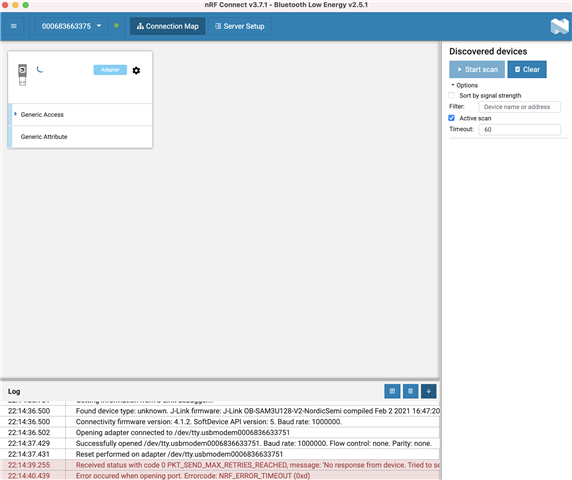
    Also, in my case, BLE doesn't even connect. Do you still think nRF Sniffer tool would be useful? Can I not use nRF Connect on my desktop? Scan devices option is greyed out let alone any scanned devices


    Any quick support is appreciated

  • morpho said:
    App version 2.4.12, and it's an iOS app.

    Thank you for clarifying.
    I just tested this on an iPhone X with the 2.4.12 version without issues - testing against the ble_app_uart application.
    Are these the only loggings available in the "Log" section during a connection? Does it not show anything about service discovery and connection parameter updates, etc?

    I know that iOS devices sometimes might experience a caching issue if their bluetooth adapter has been on for a long time. Could you try this again after having turned off and on again the phone's bluetooth?
    If this does not resolve the issue, could you try this again after uninstalling and reinstalling the nRF Connect application for smartphone entirely?

    Best regards,
    Karl

  • could you try this again after uninstalling and reinstalling the nRF Connect application for smartphone entirely?

    I actually tried this the first time it happened, and it solved the issue but this time i have tried like 4-5 times to no avail

  • morpho said:
    I actually tried this the first time it happened, and it solved the issue but this time i have tried like 4-5 times to no avail

    That sounds very peculiar indeed. I have not heard of anyone else experiencing this either yet, but I will file an internal ticket with the developers of the application so that they could be aware of it.

    Before I do so, could you try to clear the app's cache too, to see if this perhaps fixes the issue?
    And just to have it confirmed, the issue is that the view in the screenshot you sent does not change to 'connected' right? It only ever says 'connecting' when this happens?

    Best regards,
    Karl

  • Yes, it says Connecting even though I think it's connected as mentioned earlier. How do you clear the app's cache? In settings?

  • Thank you for confirming - I'll write this up in the internal ticket.

    To clear an app's cache in iOS you should see a "Clear cache" option when navigating to the app in Settings. I do not have an iOS device myself, but I am making an assumption that this should be an available option for all apps.

    Best regards,
    Karl

Reply Children
  • But, getting back to your original question - we should proceed to look at getting your sniffer up and running in order to properly being able to see what is being transmitted on-air between your devices. This will greatly help any BLE related debugging effort.

    Do you have an additional device that you may use as the sniffer's connectivity device for your connection?

    Best regards,
    Karl

  • Thought you had an iPhone X (or maybe it was someone else's). Regardless, I couldn't find an option to clear the cache in the app. 

  • I already mentioned the issues I had with setting up the sniffer. I don't see any relevant option to select the nRF device in wireshark despite copying the Profile_nRF_Sniffer_Bluetooth_LE dir into the profiles folder of wireshark

  • morpho said:
    Thought you had an iPhone X (or maybe it was someone else's). Regardless, I couldn't find an option to clear the cache in the app. 

    Oh, yes, I borrowed a colleagues iPhone X to perform the previous test.
    My apologies, I should have been more specific, I meant the iPhone's system settings, not the nRF Connect's setting. If you go to the settings in which you can administer apps and permissions, etc. there should be an option to clear the app data and cache.
    Our developers has unfortunately not gotten back to me yet about the internal ticket I created. I will update you as soon as they do, but I can unfortunately not say anything about when this might be.

    morpho said:
    I already mentioned the issues I had with setting up the sniffer. I don't see any relevant option to select the nRF device in wireshark despite copying the Profile_nRF_Sniffer_Bluetooth_LE dir into the profiles folder of wireshark

    Could you confirm if you successfully program your nRF Device prior to this? And have you successfully installed the python requirements from \extcap\?

    Best regards,
    Karl

  • I meant the iPhone's system settings, not the nRF Connect's setting. If you go to the settings in which you can administer apps and permissions, etc. there should be an option to clear the app data and cache.

    have you tried it yourself? I know you don't have an iPhone but it'd have been worth a try at least, cause I can't seem to find any option to delete the cache.

Related