Where did the text from this printf go? Which window or tab shows the stdio output? Or do I have to do something in the example's configuration to turn it on?
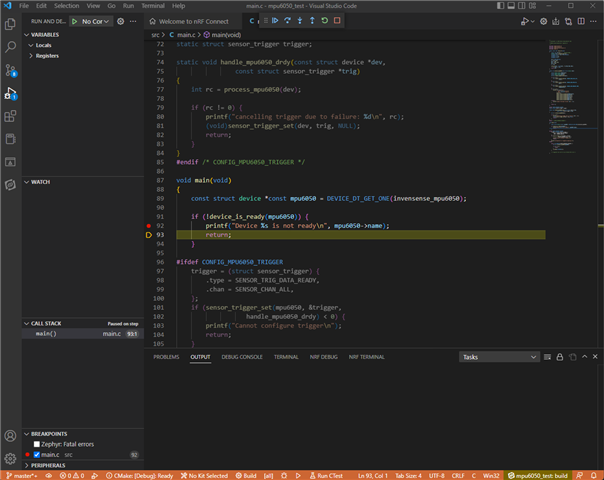
Where did the text from this printf go? Which window or tab shows the stdio output? Or do I have to do something in the example's configuration to turn it on?

Hello,
I suggest to check out the devacademy, I believe in specific exercise 4-1 show this:
https://academy.nordicsemi.com/topic/exercise-1-4/
I recommend to start from the beginning if you haven't already:
https://academy.nordicsemi.com/courses/nrf-connect-sdk-fundamentals/
A tip: It's possible to download a terminal window (e.g. teraterm or putty) to have a window open instead of using the nRF Terminal in VS code.
Kenneth
The exercise-1-4 link seems to imply that the examples won't work as written - that you have to replace the printf calls with printk calls. Is that true? If so, why doesn't the project include a header file that simply redefines printf to be named whatever the console function wants?
Also, the Segger RTT version of printf supports %f floating point and I see printk does not. In the case of Segger, there is an SES project flag you can set to turn on floating support. Is there such a flag in the nRF Connect project?
My application makes other use of the UART, so I can't use it for debugging. Previously, I used the Segger RTT function that pipes logging info over the JTAG. I see that nRF Connect supports RTT too so I think I'm good.
It looks like the Dev Academy authentical system is different from the Devzone support system - that I have to register for a different account. At least my devzone credentials don't seem to work there. Why did you do that?